

ONE PLACE TO CONFIGURE YOUR OPERATION
Set up the data, workflows and digital workers behind your operation. Start with ready-made building blocks and adjust them to your process

Turn requests into tools and actions
Describe what you need in the product chat. Architect sets up your workspace, creates digital workers or runs the task with the right tools
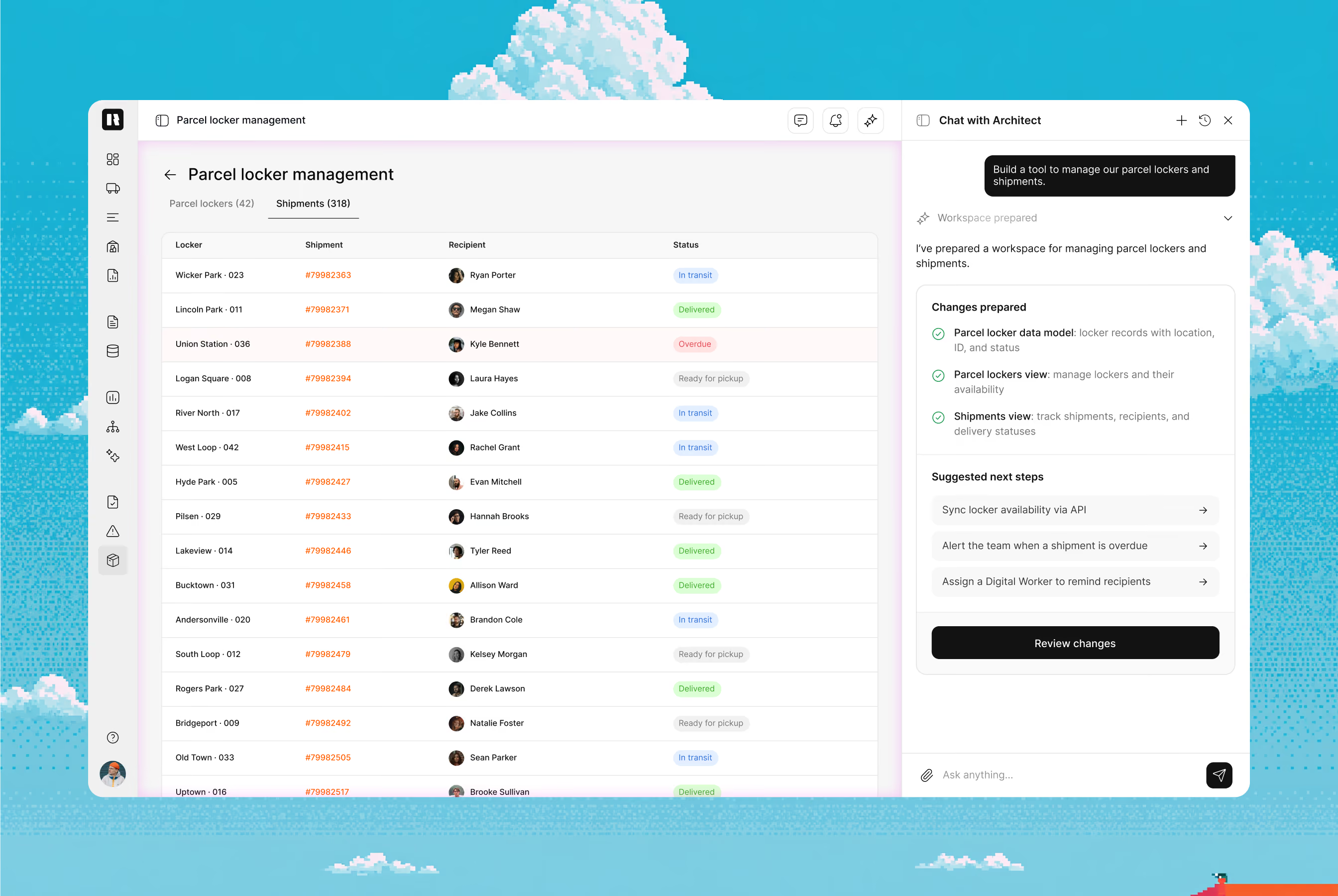
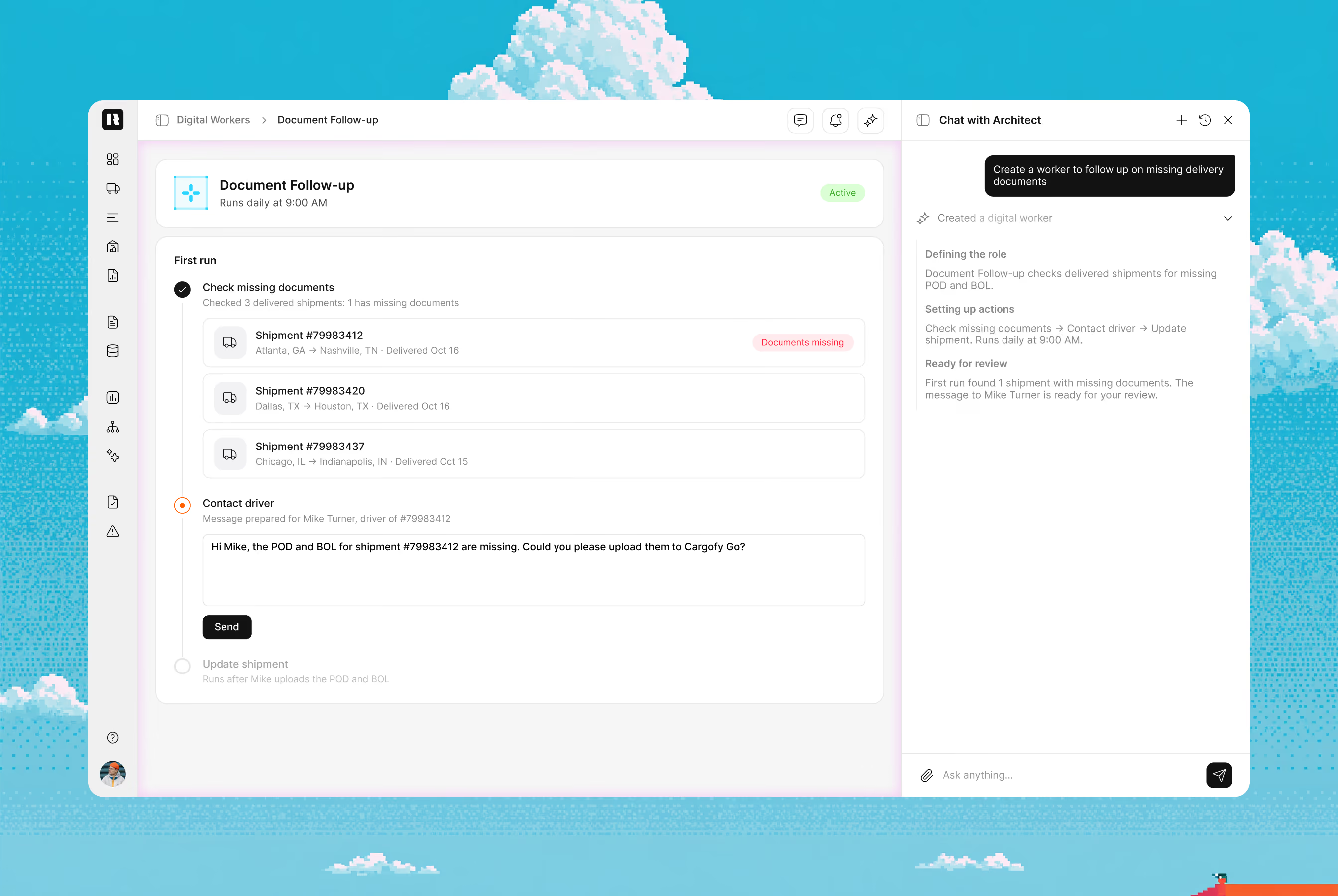
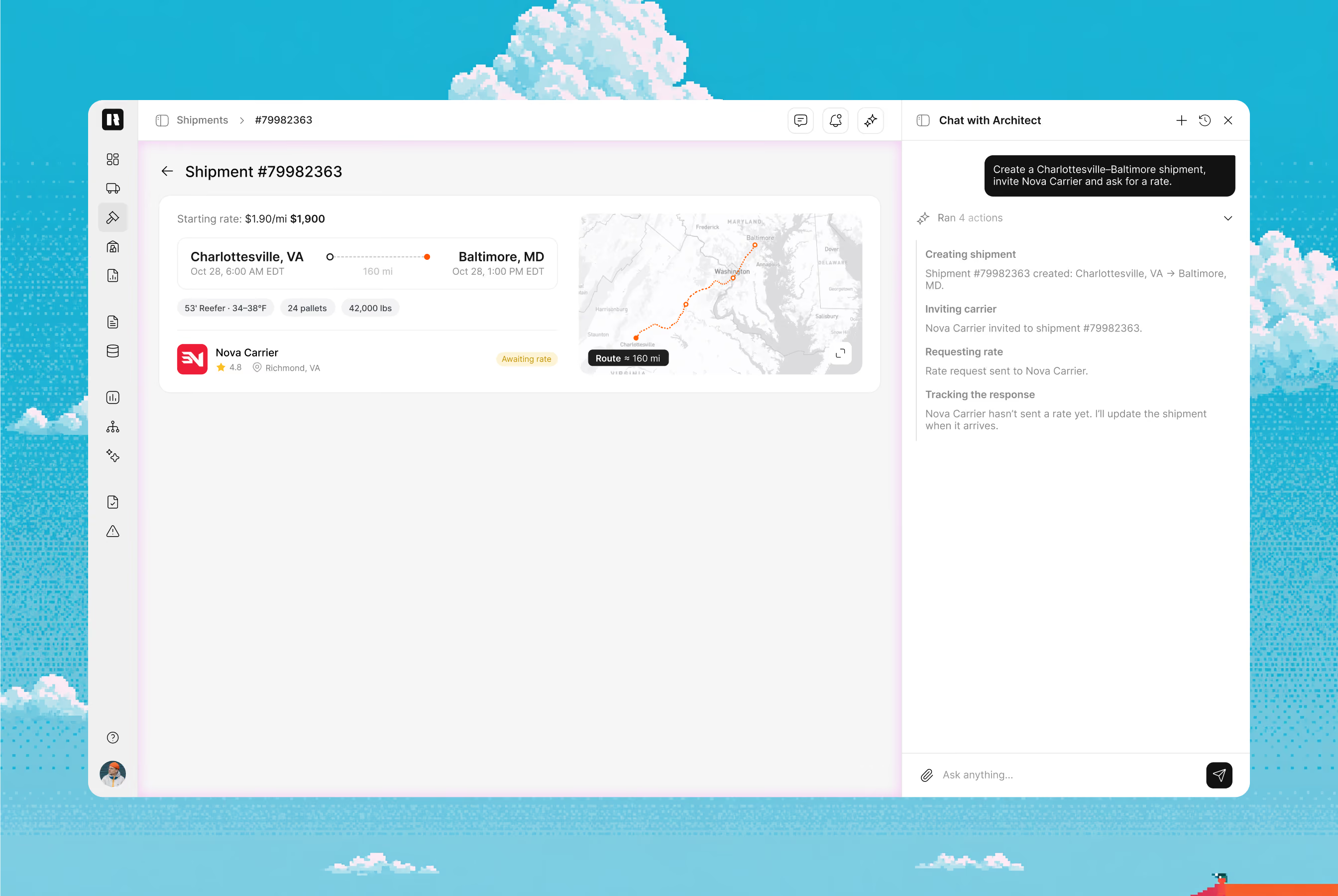
You review and confirm workspace changes before they are applied. Architect acts within your permissions
Give each part of the process a clear job
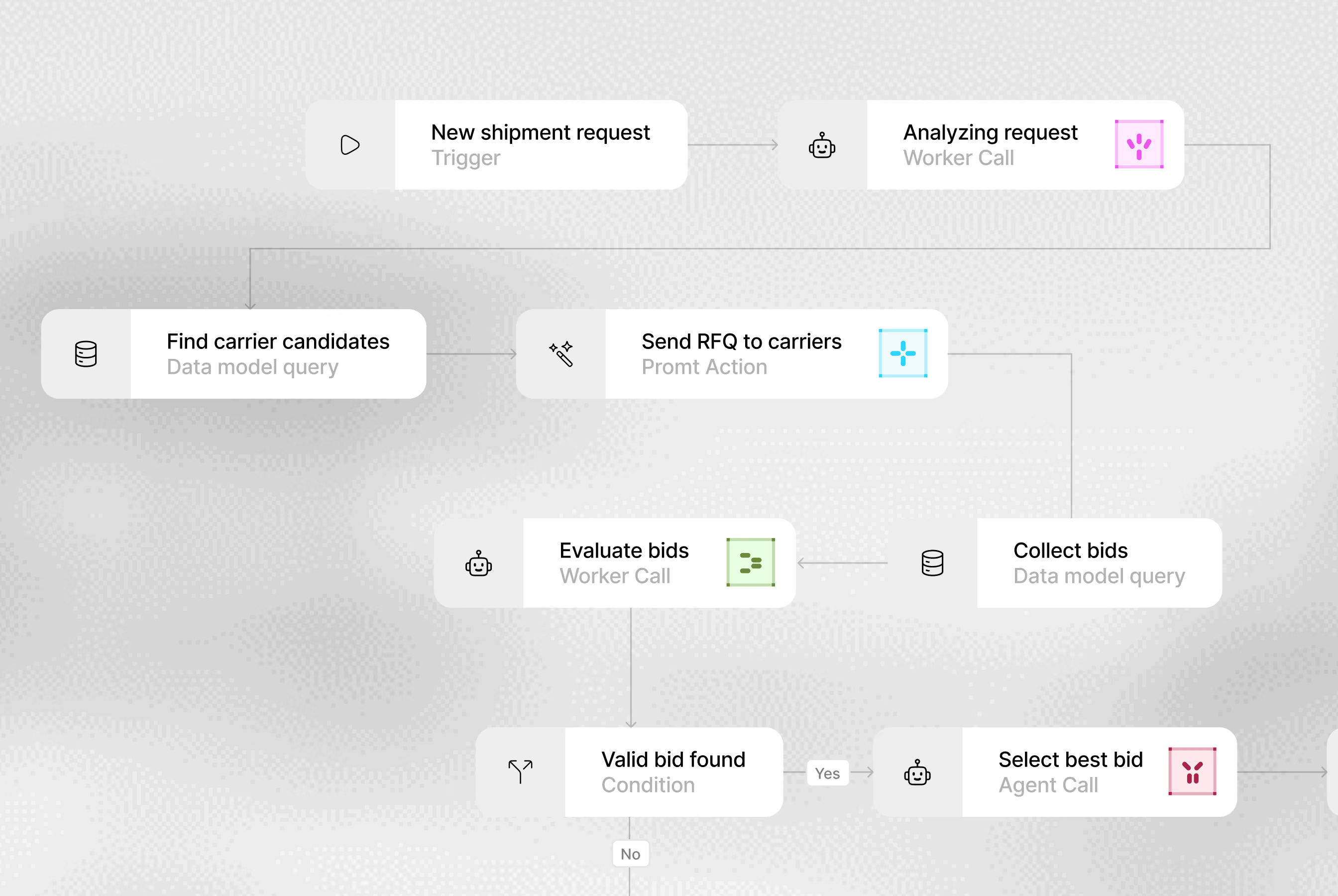
A defined sequence of work
A workflow connects the steps needed to complete a task, from the event that starts it to the record or decision it produces
Conditions and decisions
Define which step follows each event, what information the next step needs and when the process waits for a person to decide
A clear handover between steps
Each step passes its records and results forward, so the next action starts with the context it needs
Actions a worker can perform
Superpowers are specific capabilities a worker can perform, like reading a document or posting to a load board
Use them inside a process
A workflow gives each action its purpose: which record to work on, what information to use and what should happen next
Match the action to the role
Give a digital worker the superpowers its responsibility requires, along with the instructions and review points for that work
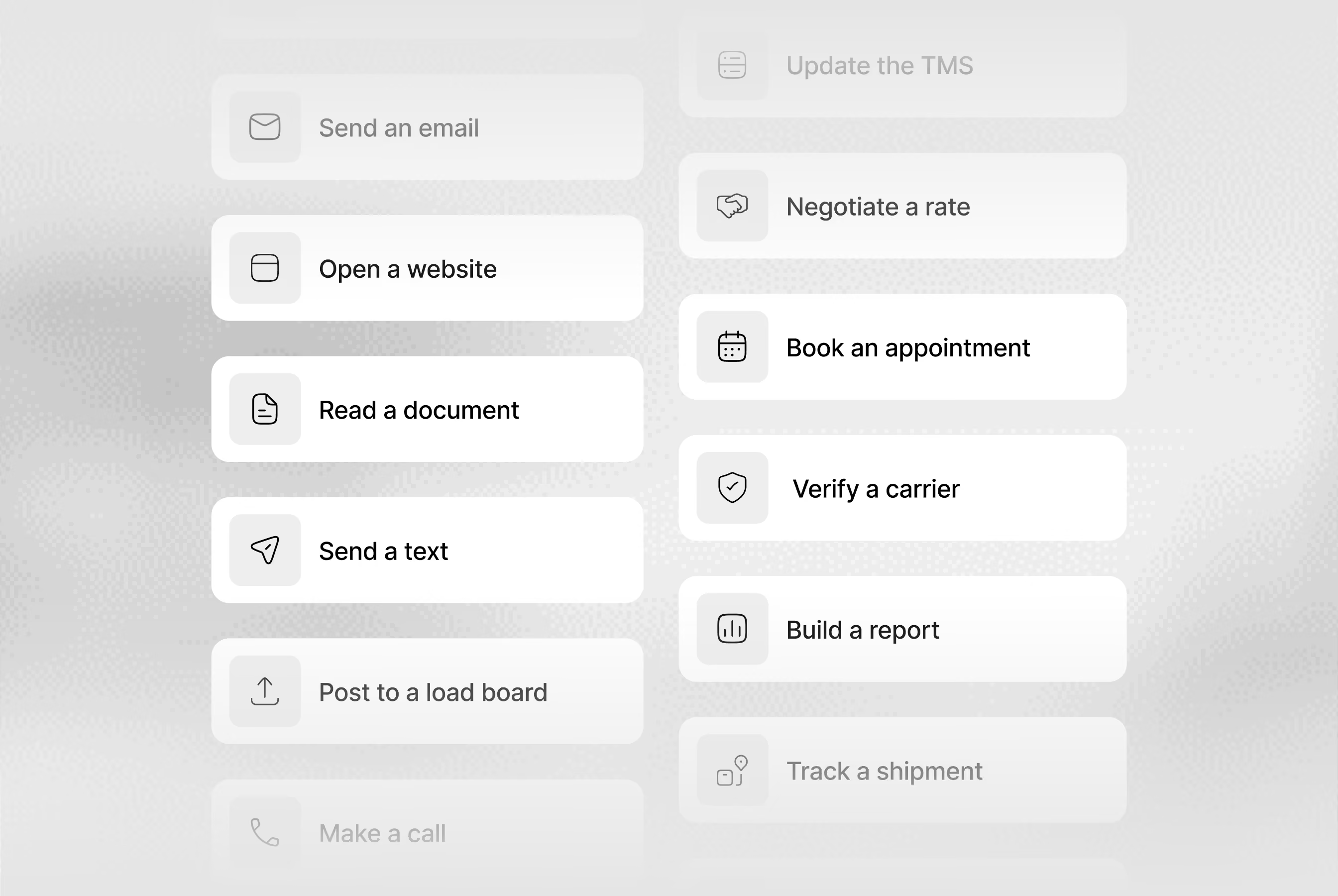
A role with a defined responsibility
Set up a digital worker for a particular job, such as collecting quotes or processing documents
Context, instructions and capabilities
Connect the worker to the data, business rules, tools and superpowers needed for that responsibility
People stay in the process
Define which actions the worker handles and where it asks your team for a decision or hands an exception to a person
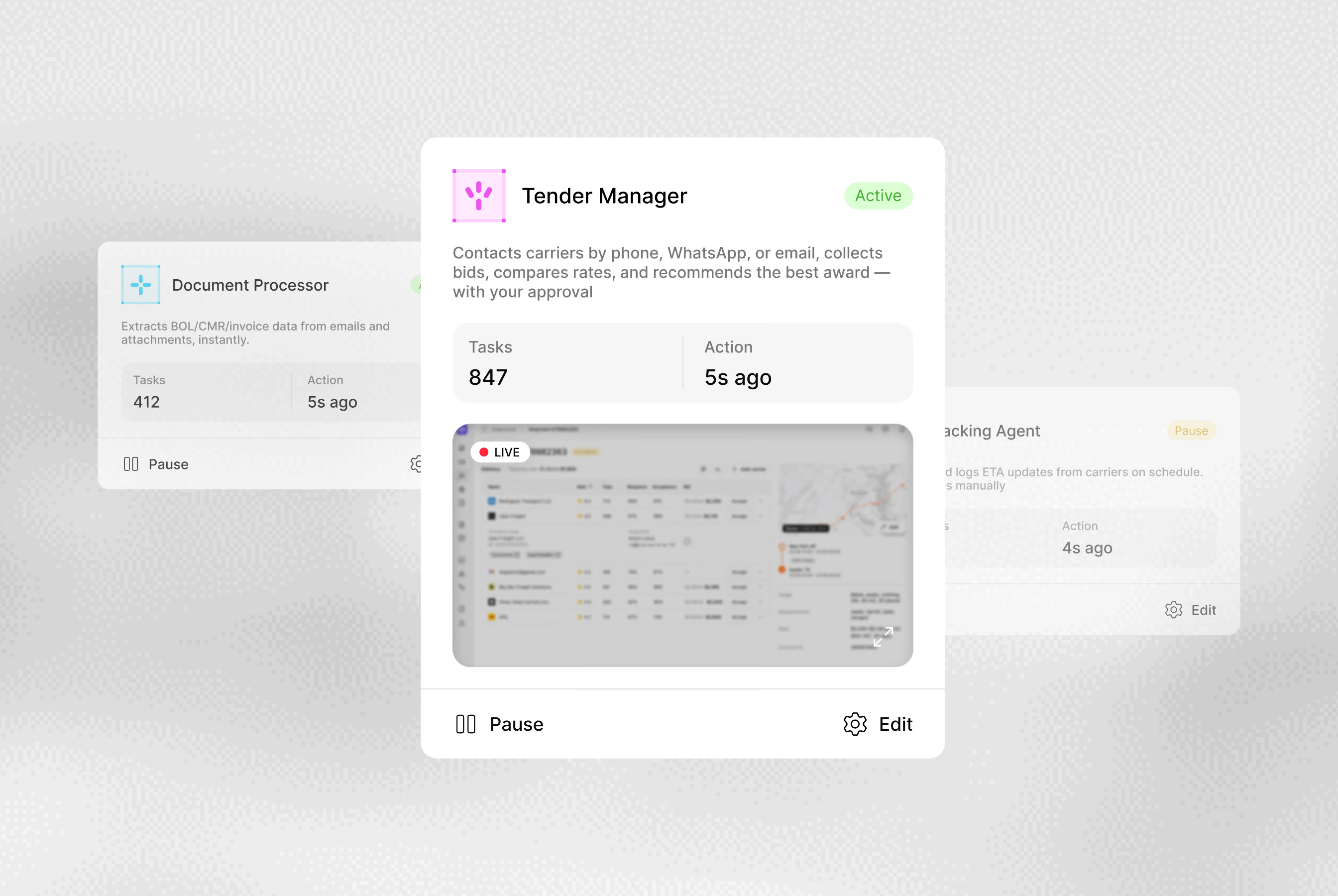
Automate your process from request to result
Connect digital workers, your team and integrated tools in one process. Define when work starts, how data moves between steps and where a person needs to decide
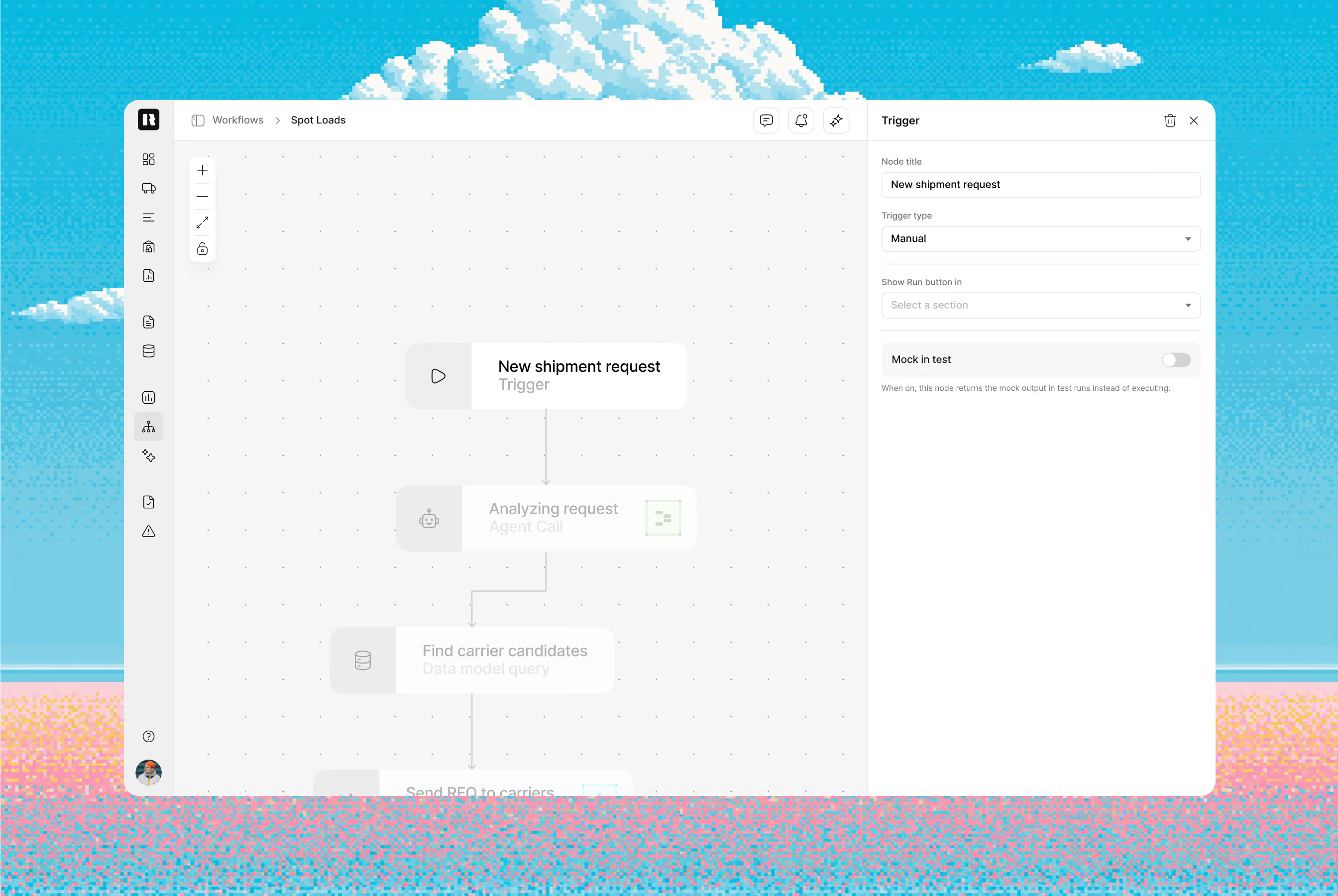
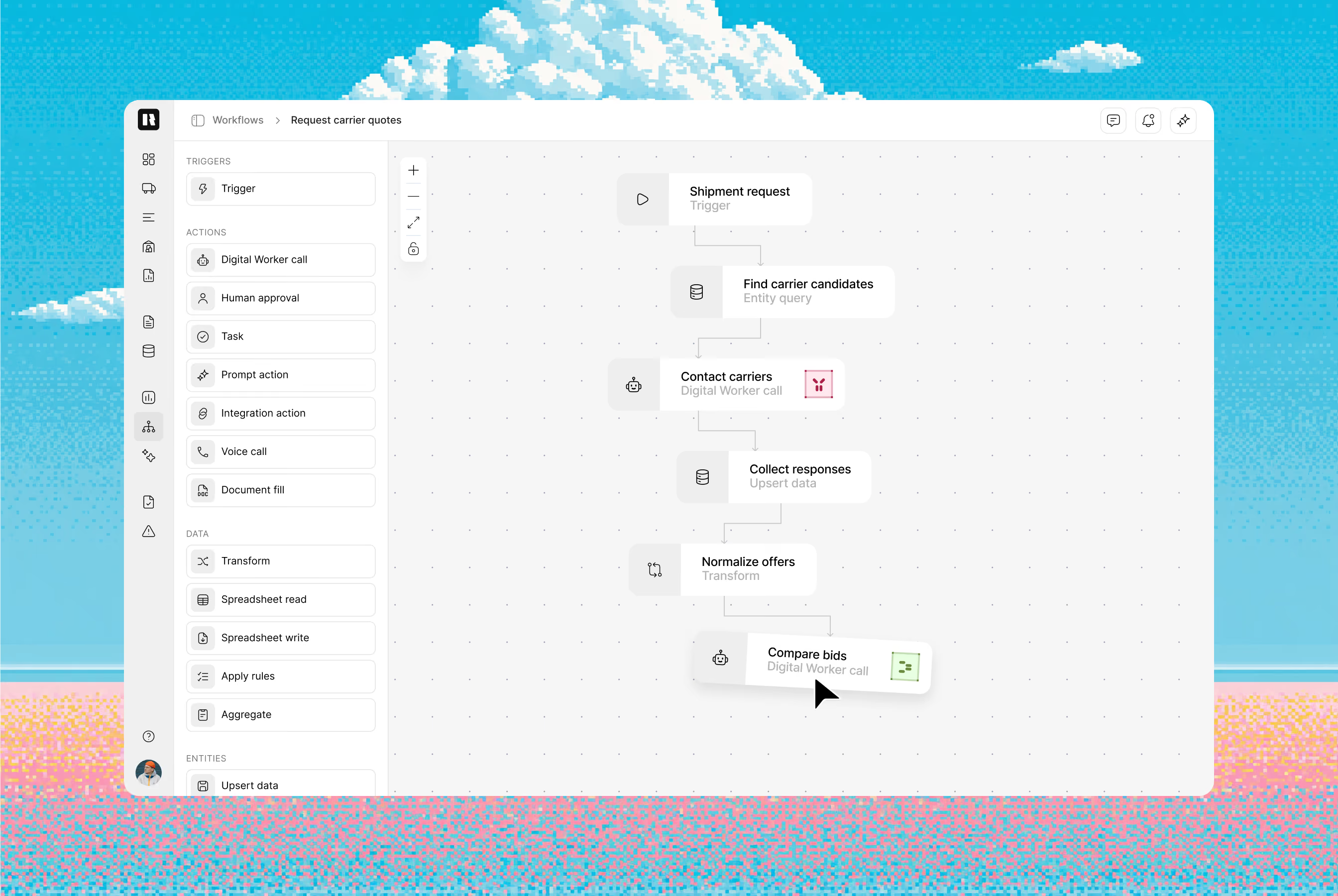
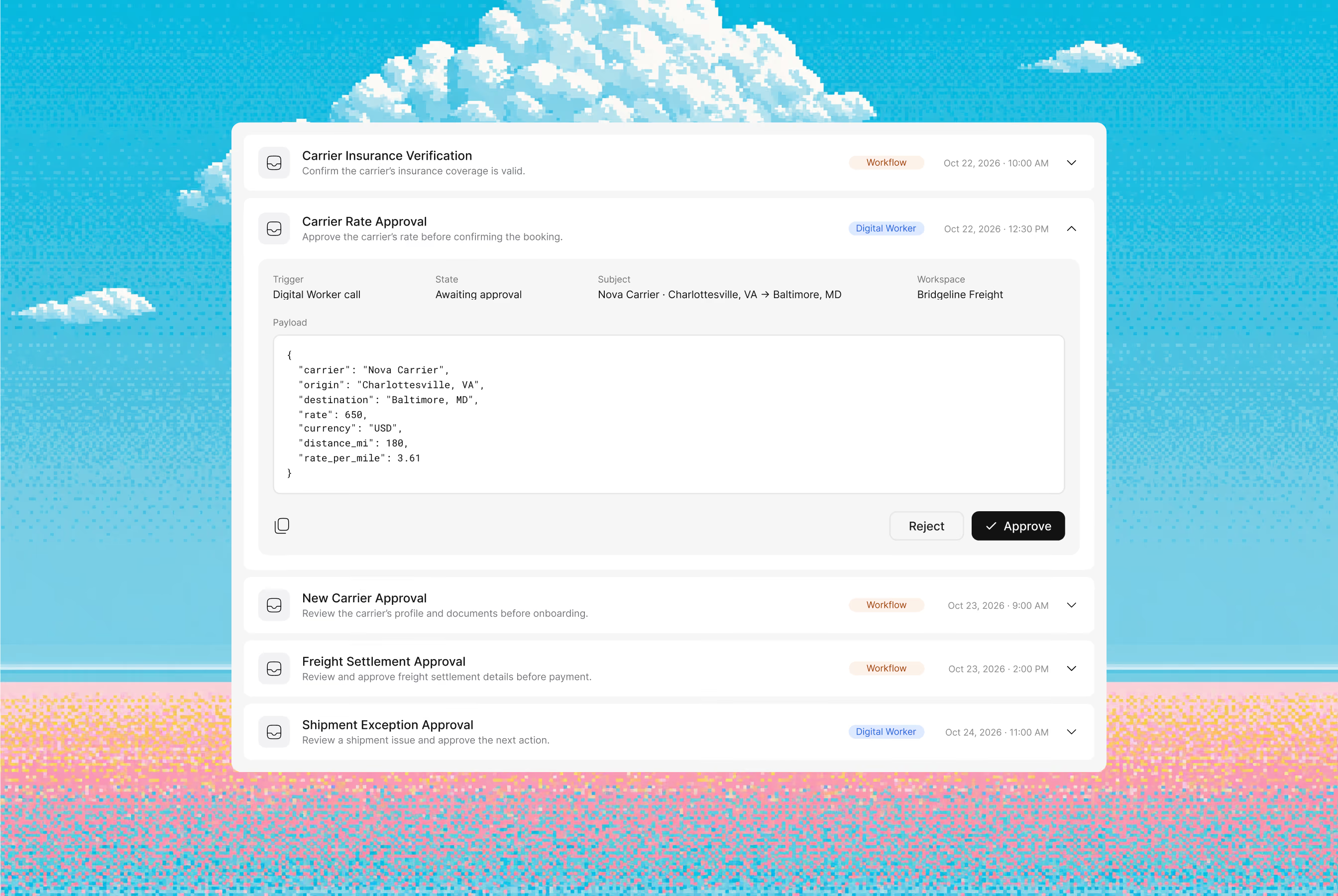
CONNECT THE PROCESS TO YOUR SYSTEMS AND PEOPLE
Bring in the relevant records
Connect the systems that hold the information your process needs, such as your TMS, ERP or communication tools
Use data in the next step
Define which information a workflow reads from a connection and what it sends back when an action is completed
Choose connections for the job
Start with the systems involved in the process you’re setting up. Each integration supports a specific step, like pulling load details or posting a status update

Collect the information you need
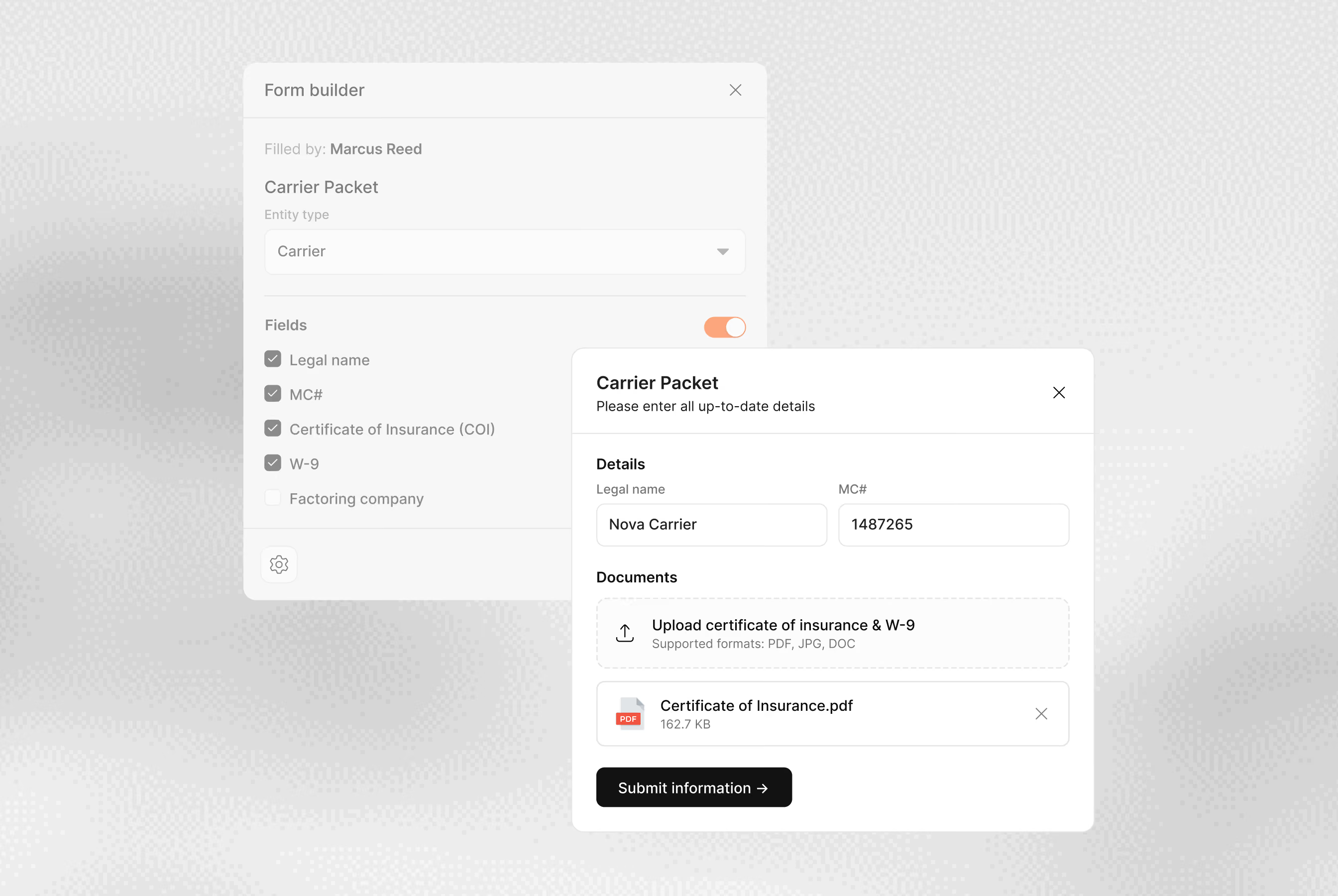
Use a form to gather the fields required for a request, an onboarding step or an operational update
Connect submissions to records
Match the information people provide to the data model used by the process, so every submission lands on the right record
Give the submission a next step
Define what happens after a form arrives: create a task, update a record or send the information for review
Give the team a working view
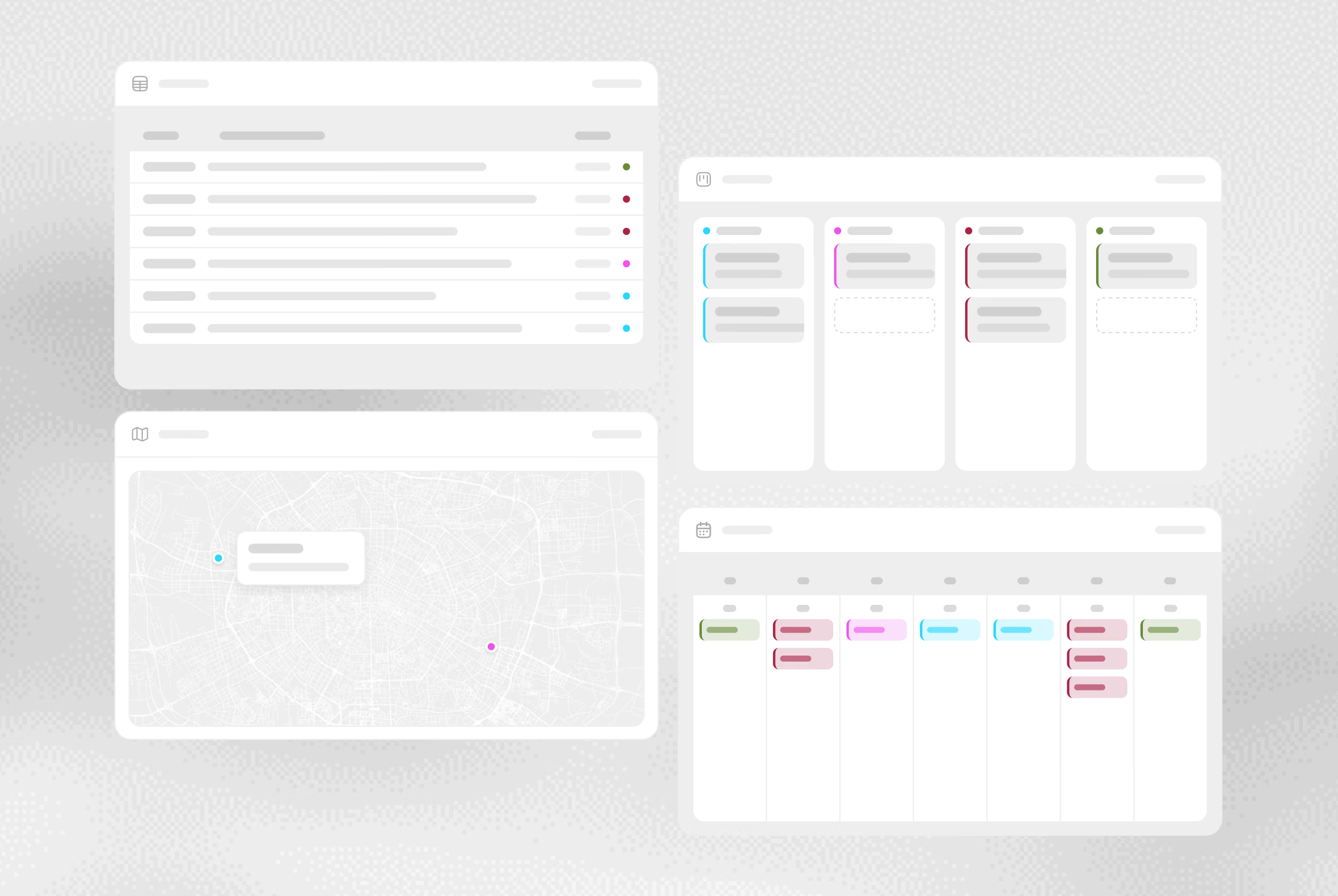
Use interfaces to present the records and actions relevant to a role, such as a list of shipments or tasks awaiting review
Choose the useful detail
Show the fields, statuses and related records the team needs to make a decision, all on one screen
Keep actions close to the data
Connect the interface to the work behind it, so a person can review a record and take the next step in the same context
A workspace for external participants
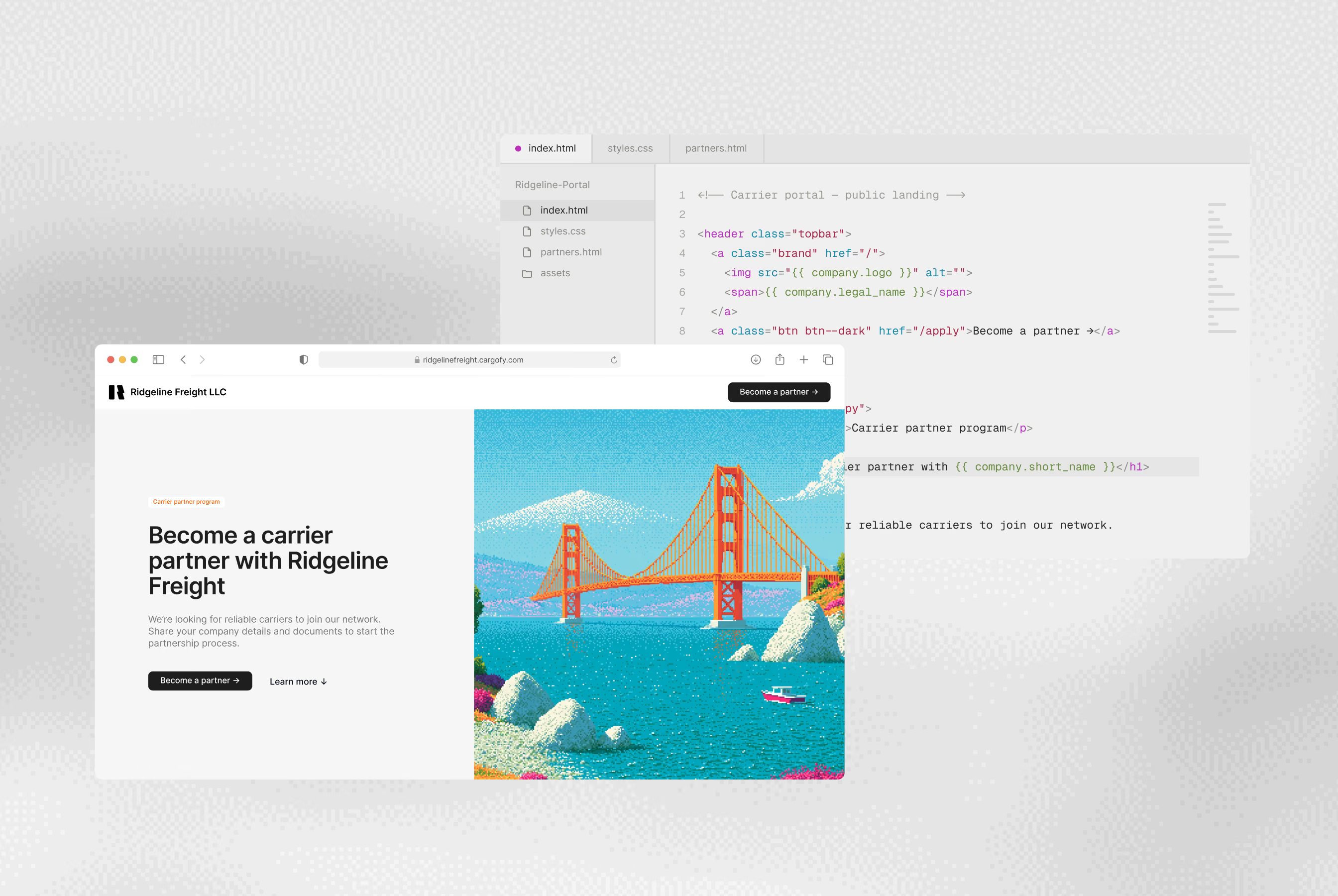
Give customers, carriers or partners an interface for the information and tasks they need to contribute to a process
Connect contributions to the work
Use the portal for the relevant forms, documents or updates, with those contributions connected to operational records
Define the participant's role
Decide what each participant can see or submit for the process. Internal working screens stay private
Structure your operational records
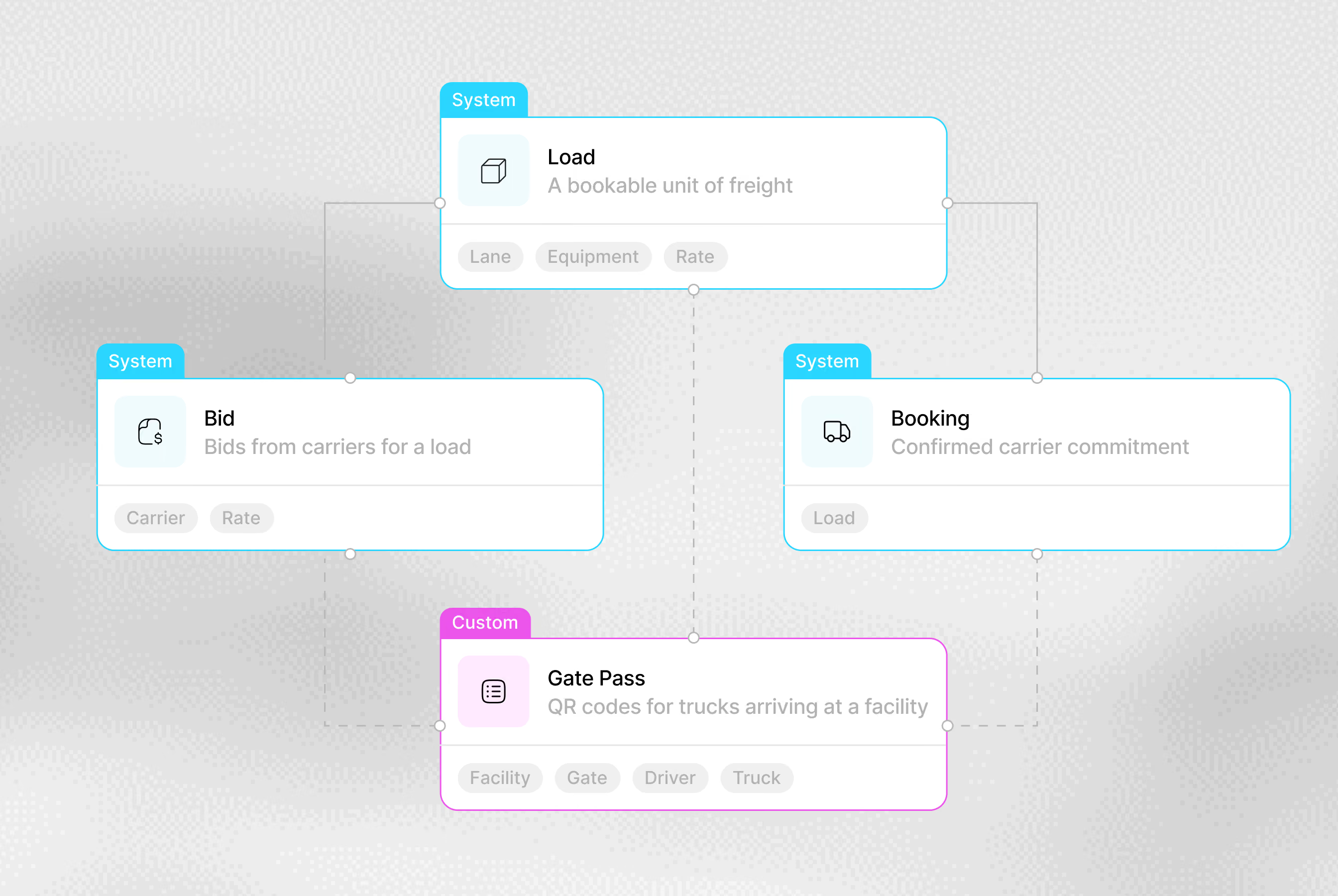
Define what each type of record holds. A shipment carries its route, dates and status. A carrier record holds the company’s details, documents and contacts. Every person and digital worker reads the same fields
Keep related records connected
Connect records such as shipments, carriers and documents, so the people and digital workers handling the work can follow the relevant context
Adapt the structure to your process
Add a field, such as a temperature requirement, or define a new model for a different type of record. Architect shows you the proposed changes and applies them only after you confirm
From building blocks to business flows
A business flow connects your building blocks into one end-to-end process, from a new request to a delivered load, and carries the relevant records between stages
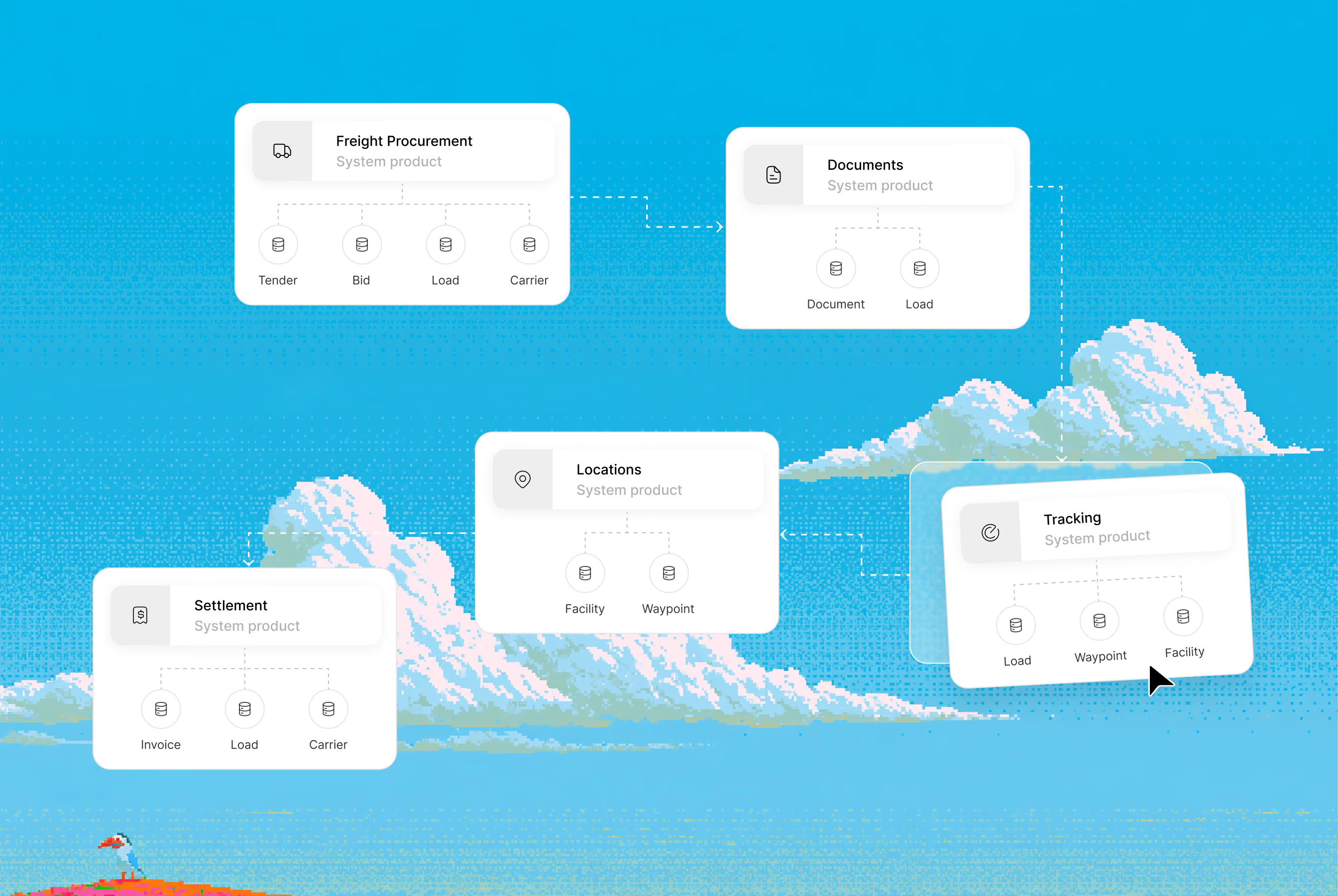
Connect Cargofy to the rest of your stack
API
Send and receive data between Cargofy and your external systems. For each connection, you choose which records it works with and which actions it can trigger
MCP
Connect AI tools that support MCP, such as Claude or ChatGPT, to Cargofy records and actions. Scope each connection to the work it needs to support
See where the configured work runs
Studio is where you set things up, but Platform is where all the work happens — a shared workspace where your team and digital workers handle tasks, records, conversations and approvals every day

Enterprise grade security
Your data stays yours. Built with privacy-first architecture for regulated industries.

Enterprise access controls

Independently audited

GDPR, CCPA, HIPAA ready

AES-256 at rest, TLS 1.3 in transit
About Studio
How the building blocks fit together, how Architect helps you make changes and where to start.
Studio brings together data models, workflows, digital workers, superpowers and interfaces. These building blocks define the records, actions and responsibilities behind a working process.
No. Your team describes changes in plain language, and Architect prepares them. Developers are only needed for custom API work, if your process requires it
Architect is your main setup agent inside the product. Describe the change you need, such as “Add a temperature field to shipments.” Architect clarifies the request and prepares updates to data models, fields, screens, workflows and digital workers
No. Architect shows you each set of changes before applying it and waits for your confirmation. It acts on your behalf, with the same permissions as your user account
Use the Architect chat inside the product. Start with a specific change, such as "Add a temperature field." Architect will clarify what you need and show you the proposed update before applying it


Start with one process worth improving
Show us how the work gets done today. We will map the data, steps and responsibilities, then walk through a setup that fits your operation.